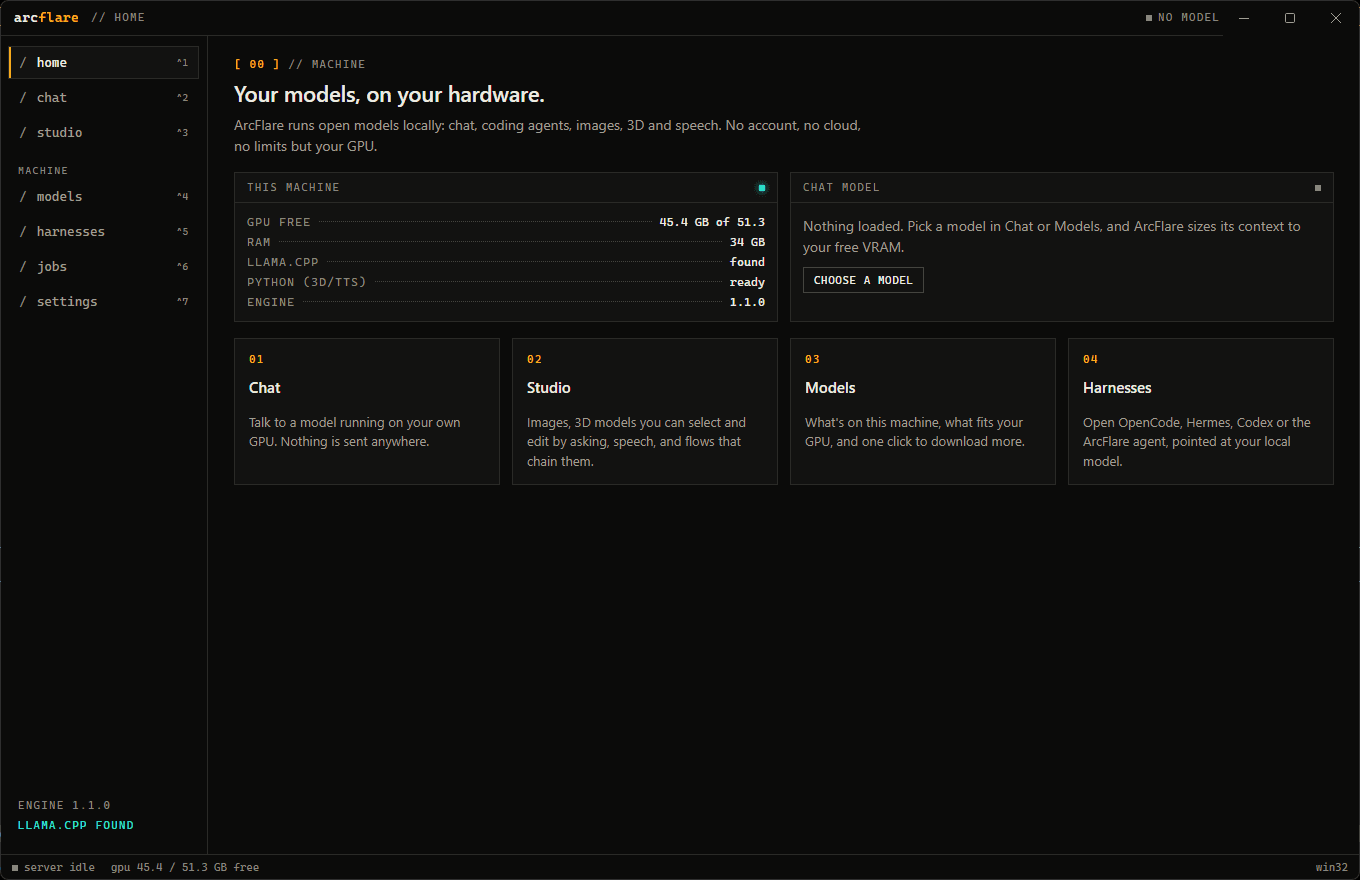
ARCFLARECLI v1.197 MODELS37 LABS LOCAL
▪ qwen3-tts · 1.7B · ~6 GB · Apache-2.0▪ kokoro · 82M · ~1 GB · Apache-2.0▪ chatterbox · 0.5B · ~4 GB · MIT▪ voxcpm2 · 2B · ~8 GB · Apache-2.0▪ outetts · 0.6B · ~2 GB · Apache-2.0▪ kitten-tts-2 · 1.7B · ~4 GB · Stellon Labs Community▪ mellum · 4B · ~5 GB · Apache-2.0▪ seed-coder · 8B · ~7 GB · MIT▪ deepseek-coder-v2-lite · 16B · ~12 GB · DeepSeek License▪ codestral · 22B · ~15 GB · Mistral Non-Production▪ devstral2-small · 24B · ~16 GB · Apache-2.0▪ glm4.7-flash · 30B-A3B · ~20 GB · MIT▪ olympiccoder · 32B · ~22 GB · Apache-2.0▪ nextcoder · 32B · ~22 GB · MIT▪ qwen3.5 · 27B · ~18 GB · Apache-2.0▪ kimi-dev · 72B · ~42 GB · MIT▪ qwen3-coder-next · 80B-A3B · ~52 GB · Apache-2.0▪ glm4.6 · 357B · ~220 GB · MIT▪ gemma3-270m · 270M · ~0.5 GB · Gemma▪ smollm3 · 3B · ~2.5 GB · Apache-2.0▪ phi4-mini · 3.8B · ~3 GB · MIT▪ qwen3 · 8B · ~6 GB · Apache-2.0▪ gemma3 · 12B · ~9 GB · Gemma▪ gpt-oss · 20B · ~14 GB · Apache-2.0▪ mistral-small3.1 · 24B · ~16 GB · Apache-2.0▪ devstral · 24B · ~16 GB · Apache-2.0▪ qwen3-coder · 30B-A3B · ~19 GB · Apache-2.0▪ glm4.5-air · 106B-A12B · ~64 GB · MIT▪ llama4-scout · 109B-A17B · ~64 GB · Llama 4 Community▪ deepseek-r1-0528 · 8B · ~6 GB · MIT▪ kimi-k2 · 1T-A32B · ~250 GB · Modified MIT▪ qwen2.5-vl · 7B · ~6 GB · Apache-2.0▪ qwen3-embedding · 0.6B · ~1 GB · Apache-2.0▪ hunyuan3d-2-turbo · 1.1B · ~6 GB · Tencent Hunyuan Community▪ hunyuan3d-2mini-fast · 0.6B · ~5 GB · Tencent Hunyuan Community▪ mixtral · 8x7B · ~28 GB · Apache-2.0▪ mxbai-embed-large · 335M · ~2 GB · Apache-2.0▪ moondream · 1.8B · ~3 GB · Apache-2.0▪ whisper · 1.5B · ~6 GB · MIT▪ flux.1-schnell · 12B · ~24 GB · Apache-2.0▪ flux.1-dev · 12B · ~24 GB · FLUX.1 [dev] Non-Commercial▪ stable-diffusion-3.5 · 8B · ~16 GB · Stability AI Community▪ sdxl · 3.5B · ~8 GB · OpenRAIL++-M▪ hunyuan3d-2mini · 0.6B · ~5 GB · Tencent Hunyuan Community▪ hunyuan3d-2 · 1.1B · ~6 GB · Tencent Hunyuan Community▪ hunyuan3d-2.1 · 3.3B · ~10 GB · Tencent Hunyuan Community▪ triposr · 0.4B · ~6 GB · MIT▪ llama3.2 · 3B · ~3 GB · Llama 3.2 Community▪ llama3.2-1b · 1B · ~2 GB · Llama 3.2 Community▪ llama3.1 · 8B · ~6 GB · Llama 3.1 Community▪ llama3.3-70b · 70B · ~44 GB · Llama 3.3 Community▪ qwen2.5 · 7B · ~6 GB · Apache-2.0▪ qwen2.5-coder · 7B · ~6 GB · Apache-2.0▪ qwen2.5-coder-32b · 32B · ~21 GB · Apache-2.0▪ mistral · 7B · ~6 GB · Apache-2.0▪ mistral-nemo-12b · 12B · ~9 GB · Apache-2.0▪ mistral-small-3.2-24b · 24B · ~17 GB · Apache-2.0▪ gemma2 · 9B · ~7 GB · Gemma▪ gemma3-4b · 4B · ~5 GB · Gemma▪ gemma3-27b · 27B · ~19 GB · Gemma▪ gemma3n-e4b · E4B · ~6 GB · Gemma▪ phi4 · 14B · ~10 GB · MIT▪ qwen3-0-6b · 0.6B · ~2 GB · Apache-2.0▪ qwen3-1-7b · 1.7B · ~3 GB · Apache-2.0▪ qwen3-4b-instruct-2507 · 4B · ~4 GB · Apache-2.0▪ qwen3-14b · 14B · ~10 GB · Apache-2.0▪ qwen3-32b · 32B · ~21 GB · Apache-2.0▪ qwen3-30b-a3b-instruct-2507 · 30B-A3B · ~20 GB · Apache-2.0▪ qwen3-30b-a3b-thinking-2507 · 30B-A3B · ~20 GB · Apache-2.0▪ gpt-oss-120b · 117B-A5B · ~64 GB · Apache-2.0▪ deepseek-r1 · 7B · ~6 GB · MIT▪ deepseek-r1-distill-qwen-14b · 14B · ~10 GB · MIT▪ deepseek-r1-distill-qwen-32b · 32B · ~21 GB · MIT▪ deepseek-r1-distill-llama-8b · 8B · ~6 GB · MIT▪ phi-4-reasoning-plus · 14B · ~11 GB · MIT▪ magistral-small-2509 · 24B · ~16 GB · Apache-2.0▪ smollm2-1-7b-instruct · 1.7B · ~3 GB · Apache-2.0▪ granite-4-0-h-tiny · 7B-A1B · ~6 GB · Apache-2.0▪ nemotron-nano-9b-v2 · 9B · ~8 GB · NVIDIA Open Model License▪ ernie-4-5-21b-a3b · 21B-A3B · ~15 GB · Apache-2.0▪ lfm2-8b-a1b · 8B-A1B · ~6 GB · LFM Open License v1.0▪ hermes-3-llama-3-1-8b · 8B · ~6 GB · Llama 3▪ nomic-embed-text · 137M · ~2 GB · Apache-2.0▪ nomic-embed-text-v2-moe · 475M · ~2 GB · Apache-2.0▪ embeddinggemma-300m · 300M · ~2 GB · Gemma▪ bge-m3 · 568M · ~2 GB · MIT▪ qwen3-embedding-4b · 4B · ~6 GB · Apache-2.0▪ qwen3-vl-8b-instruct · 8B · ~7 GB · Apache-2.0▪ qwen2.5-vl-32b-instruct · 32B · ~22 GB · Apache-2.0▪ minicpm-v-4.5 · 8B · ~7 GB · Apache-2.0▪ smolvlm2-2.2b-instruct · 2.2B · ~4 GB · Apache-2.0▪ starcoder2 · 15B · ~11 GB · BigCode OpenRAIL-M▪ qwen2.5-coder-14b-instruct · 14B · ~10 GB · Apache-2.0▪ granite-4.0-h-small · 32B · ~21 GB · Apache-2.0▪ seed-oss-36b-instruct · 36B · ~23 GB · Apache-2.0▪ olmo-3-7b-instruct · 7B · ~6 GB · Apache-2.0▪ yi-coder-9b-chat · 9B · ~7 GB · Apache-2.0▪ qwen3-tts · 1.7B · ~6 GB · Apache-2.0▪ kokoro · 82M · ~1 GB · Apache-2.0▪ chatterbox · 0.5B · ~4 GB · MIT▪ voxcpm2 · 2B · ~8 GB · Apache-2.0▪ outetts · 0.6B · ~2 GB · Apache-2.0▪ kitten-tts-2 · 1.7B · ~4 GB · Stellon Labs Community▪ mellum · 4B · ~5 GB · Apache-2.0▪ seed-coder · 8B · ~7 GB · MIT▪ deepseek-coder-v2-lite · 16B · ~12 GB · DeepSeek License▪ codestral · 22B · ~15 GB · Mistral Non-Production▪ devstral2-small · 24B · ~16 GB · Apache-2.0▪ glm4.7-flash · 30B-A3B · ~20 GB · MIT▪ olympiccoder · 32B · ~22 GB · Apache-2.0▪ nextcoder · 32B · ~22 GB · MIT▪ qwen3.5 · 27B · ~18 GB · Apache-2.0▪ kimi-dev · 72B · ~42 GB · MIT▪ qwen3-coder-next · 80B-A3B · ~52 GB · Apache-2.0▪ glm4.6 · 357B · ~220 GB · MIT▪ gemma3-270m · 270M · ~0.5 GB · Gemma▪ smollm3 · 3B · ~2.5 GB · Apache-2.0▪ phi4-mini · 3.8B · ~3 GB · MIT▪ qwen3 · 8B · ~6 GB · Apache-2.0▪ gemma3 · 12B · ~9 GB · Gemma▪ gpt-oss · 20B · ~14 GB · Apache-2.0▪ mistral-small3.1 · 24B · ~16 GB · Apache-2.0▪ devstral · 24B · ~16 GB · Apache-2.0▪ qwen3-coder · 30B-A3B · ~19 GB · Apache-2.0▪ glm4.5-air · 106B-A12B · ~64 GB · MIT▪ llama4-scout · 109B-A17B · ~64 GB · Llama 4 Community▪ deepseek-r1-0528 · 8B · ~6 GB · MIT▪ kimi-k2 · 1T-A32B · ~250 GB · Modified MIT▪ qwen2.5-vl · 7B · ~6 GB · Apache-2.0▪ qwen3-embedding · 0.6B · ~1 GB · Apache-2.0▪ hunyuan3d-2-turbo · 1.1B · ~6 GB · Tencent Hunyuan Community▪ hunyuan3d-2mini-fast · 0.6B · ~5 GB · Tencent Hunyuan Community▪ mixtral · 8x7B · ~28 GB · Apache-2.0▪ mxbai-embed-large · 335M · ~2 GB · Apache-2.0▪ moondream · 1.8B · ~3 GB · Apache-2.0▪ whisper · 1.5B · ~6 GB · MIT▪ flux.1-schnell · 12B · ~24 GB · Apache-2.0▪ flux.1-dev · 12B · ~24 GB · FLUX.1 [dev] Non-Commercial▪ stable-diffusion-3.5 · 8B · ~16 GB · Stability AI Community▪ sdxl · 3.5B · ~8 GB · OpenRAIL++-M▪ hunyuan3d-2mini · 0.6B · ~5 GB · Tencent Hunyuan Community▪ hunyuan3d-2 · 1.1B · ~6 GB · Tencent Hunyuan Community▪ hunyuan3d-2.1 · 3.3B · ~10 GB · Tencent Hunyuan Community▪ triposr · 0.4B · ~6 GB · MIT▪ llama3.2 · 3B · ~3 GB · Llama 3.2 Community▪ llama3.2-1b · 1B · ~2 GB · Llama 3.2 Community▪ llama3.1 · 8B · ~6 GB · Llama 3.1 Community▪ llama3.3-70b · 70B · ~44 GB · Llama 3.3 Community▪ qwen2.5 · 7B · ~6 GB · Apache-2.0▪ qwen2.5-coder · 7B · ~6 GB · Apache-2.0▪ qwen2.5-coder-32b · 32B · ~21 GB · Apache-2.0▪ mistral · 7B · ~6 GB · Apache-2.0▪ mistral-nemo-12b · 12B · ~9 GB · Apache-2.0▪ mistral-small-3.2-24b · 24B · ~17 GB · Apache-2.0▪ gemma2 · 9B · ~7 GB · Gemma▪ gemma3-4b · 4B · ~5 GB · Gemma▪ gemma3-27b · 27B · ~19 GB · Gemma▪ gemma3n-e4b · E4B · ~6 GB · Gemma▪ phi4 · 14B · ~10 GB · MIT▪ qwen3-0-6b · 0.6B · ~2 GB · Apache-2.0▪ qwen3-1-7b · 1.7B · ~3 GB · Apache-2.0▪ qwen3-4b-instruct-2507 · 4B · ~4 GB · Apache-2.0▪ qwen3-14b · 14B · ~10 GB · Apache-2.0▪ qwen3-32b · 32B · ~21 GB · Apache-2.0▪ qwen3-30b-a3b-instruct-2507 · 30B-A3B · ~20 GB · Apache-2.0▪ qwen3-30b-a3b-thinking-2507 · 30B-A3B · ~20 GB · Apache-2.0▪ gpt-oss-120b · 117B-A5B · ~64 GB · Apache-2.0▪ deepseek-r1 · 7B · ~6 GB · MIT▪ deepseek-r1-distill-qwen-14b · 14B · ~10 GB · MIT▪ deepseek-r1-distill-qwen-32b · 32B · ~21 GB · MIT▪ deepseek-r1-distill-llama-8b · 8B · ~6 GB · MIT▪ phi-4-reasoning-plus · 14B · ~11 GB · MIT▪ magistral-small-2509 · 24B · ~16 GB · Apache-2.0▪ smollm2-1-7b-instruct · 1.7B · ~3 GB · Apache-2.0▪ granite-4-0-h-tiny · 7B-A1B · ~6 GB · Apache-2.0▪ nemotron-nano-9b-v2 · 9B · ~8 GB · NVIDIA Open Model License▪ ernie-4-5-21b-a3b · 21B-A3B · ~15 GB · Apache-2.0▪ lfm2-8b-a1b · 8B-A1B · ~6 GB · LFM Open License v1.0▪ hermes-3-llama-3-1-8b · 8B · ~6 GB · Llama 3▪ nomic-embed-text · 137M · ~2 GB · Apache-2.0▪ nomic-embed-text-v2-moe · 475M · ~2 GB · Apache-2.0▪ embeddinggemma-300m · 300M · ~2 GB · Gemma▪ bge-m3 · 568M · ~2 GB · MIT▪ qwen3-embedding-4b · 4B · ~6 GB · Apache-2.0▪ qwen3-vl-8b-instruct · 8B · ~7 GB · Apache-2.0▪ qwen2.5-vl-32b-instruct · 32B · ~22 GB · Apache-2.0▪ minicpm-v-4.5 · 8B · ~7 GB · Apache-2.0▪ smolvlm2-2.2b-instruct · 2.2B · ~4 GB · Apache-2.0▪ starcoder2 · 15B · ~11 GB · BigCode OpenRAIL-M▪ qwen2.5-coder-14b-instruct · 14B · ~10 GB · Apache-2.0▪ granite-4.0-h-small · 32B · ~21 GB · Apache-2.0▪ seed-oss-36b-instruct · 36B · ~23 GB · Apache-2.0▪ olmo-3-7b-instruct · 7B · ~6 GB · Apache-2.0▪ yi-coder-9b-chat · 9B · ~7 GB · Apache-2.0